

Explore performance
The Dashboard shows the selected Meta account's advertising results. Use the date controls for Today, Yesterday, 7, 14, 30, or 90 days, or choose a custom date range. Performance cards summarize results for the ads included in your current selection.
Choose dates and comparison periods →
Read the summary cards
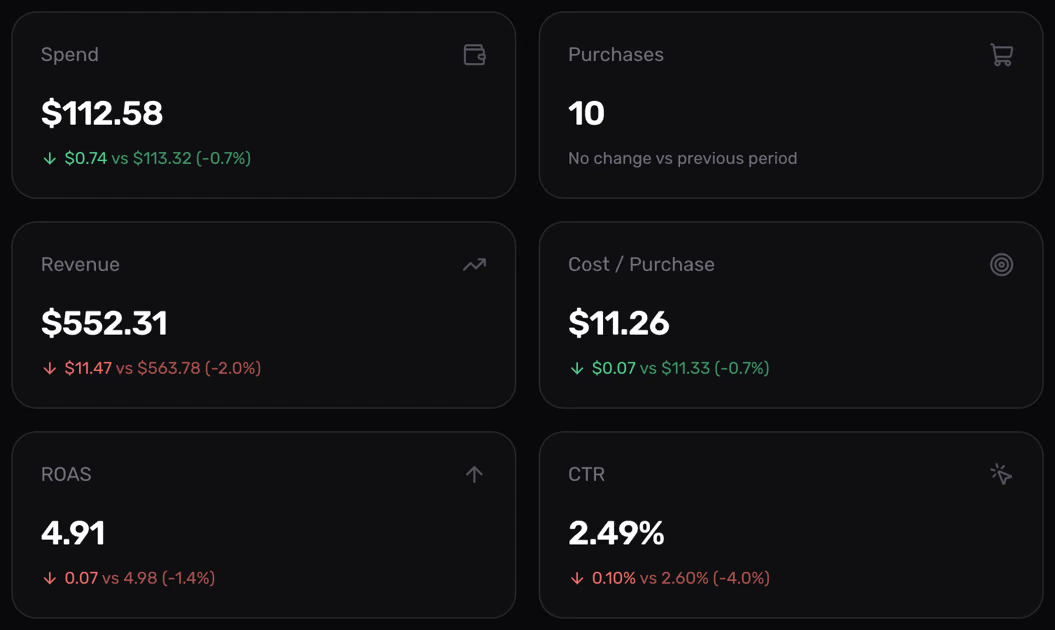
The KPI cards give you a quick view of spend, purchases, revenue, cost per purchase, ROAS and CTR. Comparison figures below the values show changes against the comparison period.
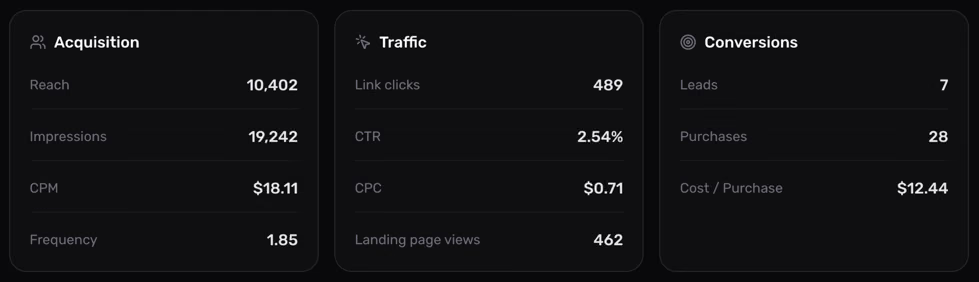
The Acquisition, Traffic and Conversions cards collect more statistics for the current selection, including reach, link clicks and leads.
The Performance chart has its own comparison switch, so you can show or hide the comparison line there. Select ads in the table if the summary cards prompt you to select assets.
Use the Performance chart to explore spend and revenue, reach, frequency, link clicks, CTR, CPM, leads, or purchases. Compare with the previous period or select a custom comparison period. Add annotations to dates on the chart when you want to record what changed.
Explore performance and compare periods →
Add chart annotations →
Focus on the ads that matter
Move between Campaigns, Ad sets, and Ads to follow the account hierarchy. Select assets to control which ads contribute to the chart and summary metrics. Use Hide paused and Hide unselected to narrow the table, and adjust the visible columns to fit your workflow.
Select campaigns, ad sets and ads →
Export and sync
Export the current performance chart as a CSV or an image. The Meta sync menu shows import status and provides a historical sync when you need to refresh older data. The initial historical import can include up to three years of available Meta Ads history.
Export charts and check sync →
Manage your account
The dashboard account menu lets you switch among connected Meta ad accounts. In Settings, you can manage Meta accounts, profile and password, appearance, subscriptions, and email notifications. Adding another Meta account includes a connection check and a billing review before import.