Before you begin
You need an AdOptic account and access to the Meta ad account whose results you want to view. AdOptic uses the connection to read advertising performance; it does not create or edit your campaigns.
Connect with Meta
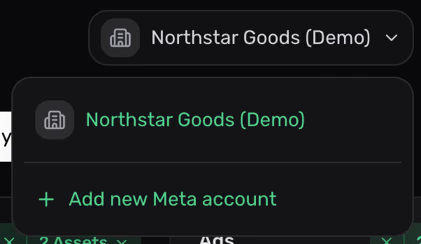
- Open Settings and choose Add Meta Account. If you already have a dashboard, its account menu also offers Add new Meta account.
- Select Connect with Meta. A Meta authorization window opens. Review the access request and approve it to continue.
- Back in AdOptic, choose the ad account from the accounts Meta made available to you. Confirm the company name and optionally add a square logo.
- Select Verify and continue. AdOptic checks the account and shows the billing review.
- Review the current and new monthly totals, then accept the terms shown. AdOptic imports the account's data and opens the dashboard when setup is complete.
The Connect with Meta button is shown when AdOptic's Meta App connection is configured. Until that setup is complete, use Connect manually instead or the manual fields shown on the page. The Meta authorization replaces the need for each customer to create a Meta App and supply a token.
Manual connection when needed
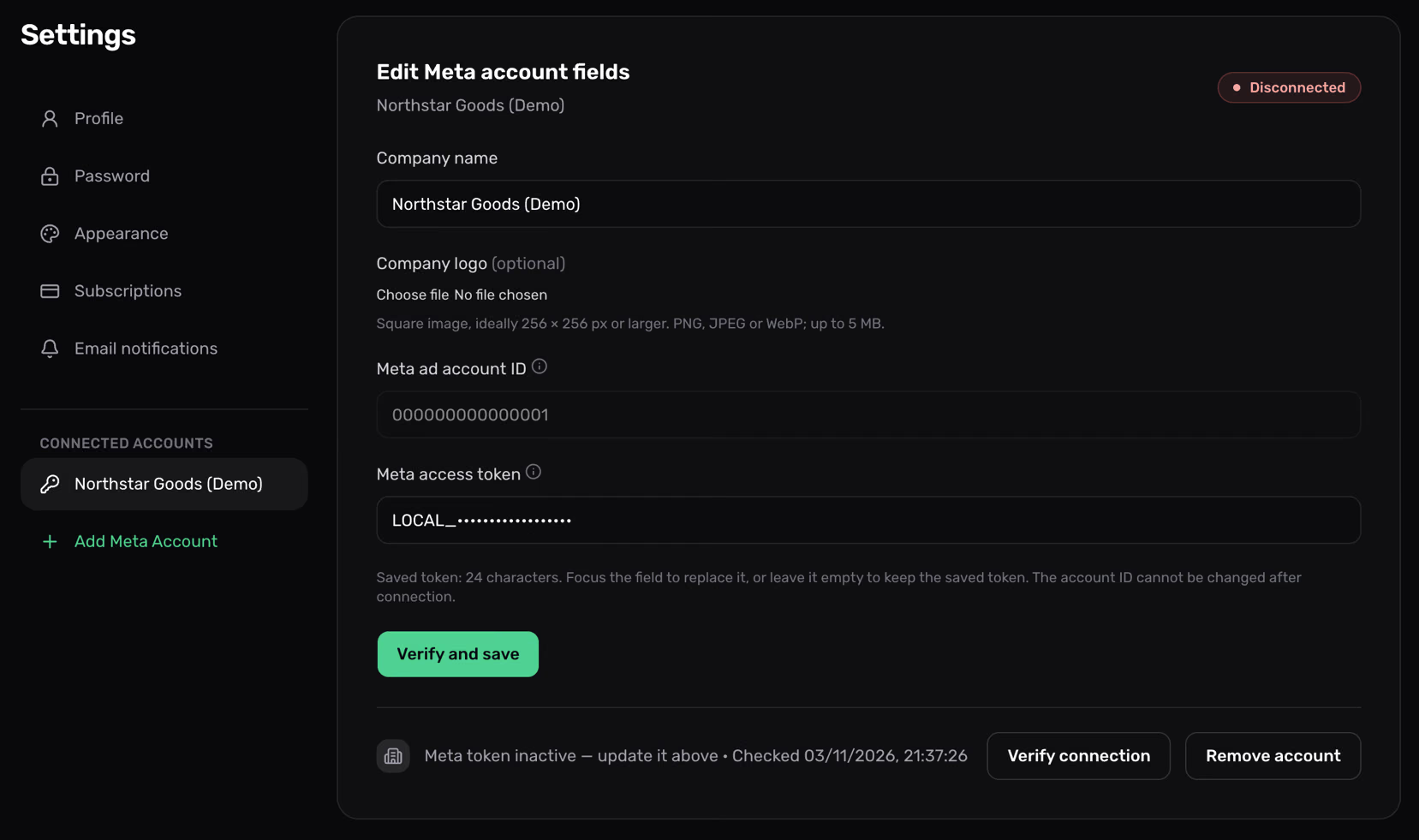
Enter the numeric Meta ad account ID and a Meta access token that can read that account. Then choose Verify and continue and complete the same billing review and import. Keep the token private.
Add another account
Use Settings → Add Meta Account to add an account, or the dashboard's account menu to add or switch accounts. Each added account goes through its own verification and billing review. The dashboard shows data for the selected account.
Troubleshoot a disconnected account
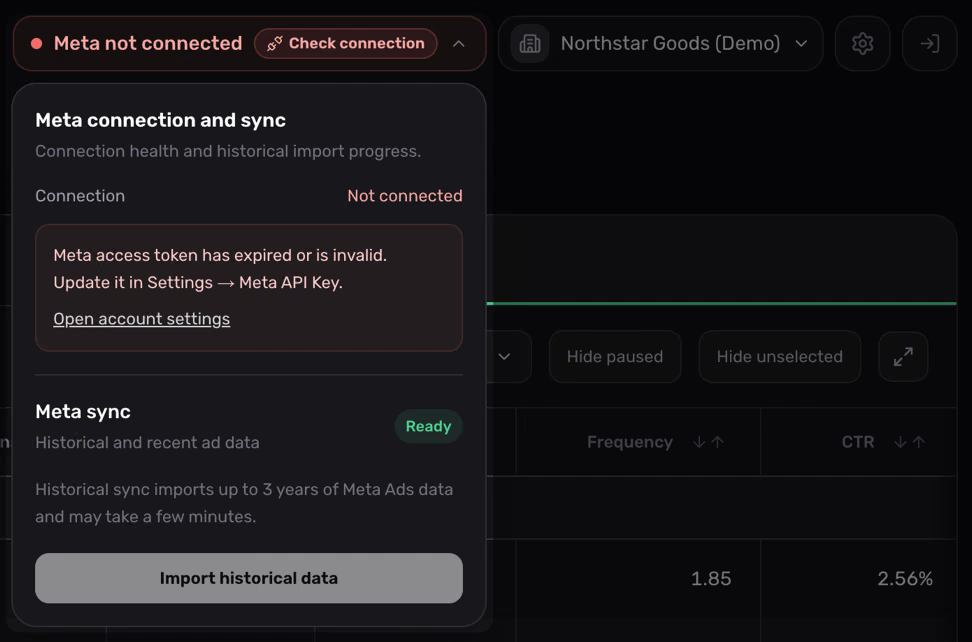
If the dashboard shows Meta not connected, open Meta connection and sync to read the connection message. The menu links to account settings when the connection needs attention.
In Settings, select the affected account under Connected Accounts. Check the message and, if a manually connected account needs a replacement token, enter a valid token and choose Verify and save. You can also use Verify connection to check the account. If you cannot restore access, check with the administrator of your Meta business or ad account.